 Selario
Home › Shopify profit by ad
Shopify profit by ad: net profit for each Meta ad
ROAS can look strong while a product loses money after discounts, cost of goods and shipping. Selario lines each Meta ad up with the Shopify product it links to, so you can see sales, costs and net profit — not only ad platform results.
✓ Free to start, no credit card required. Free while in early access.
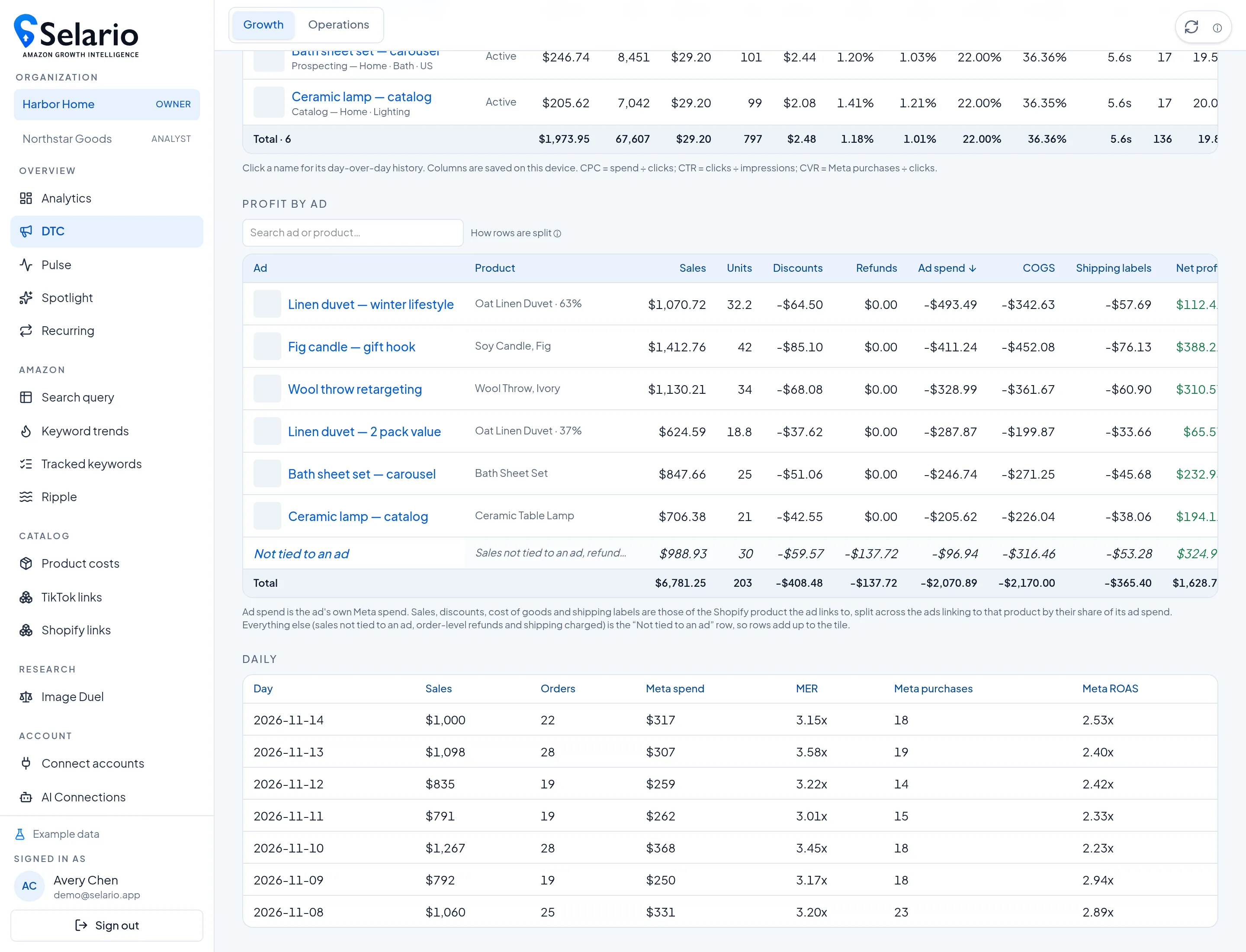
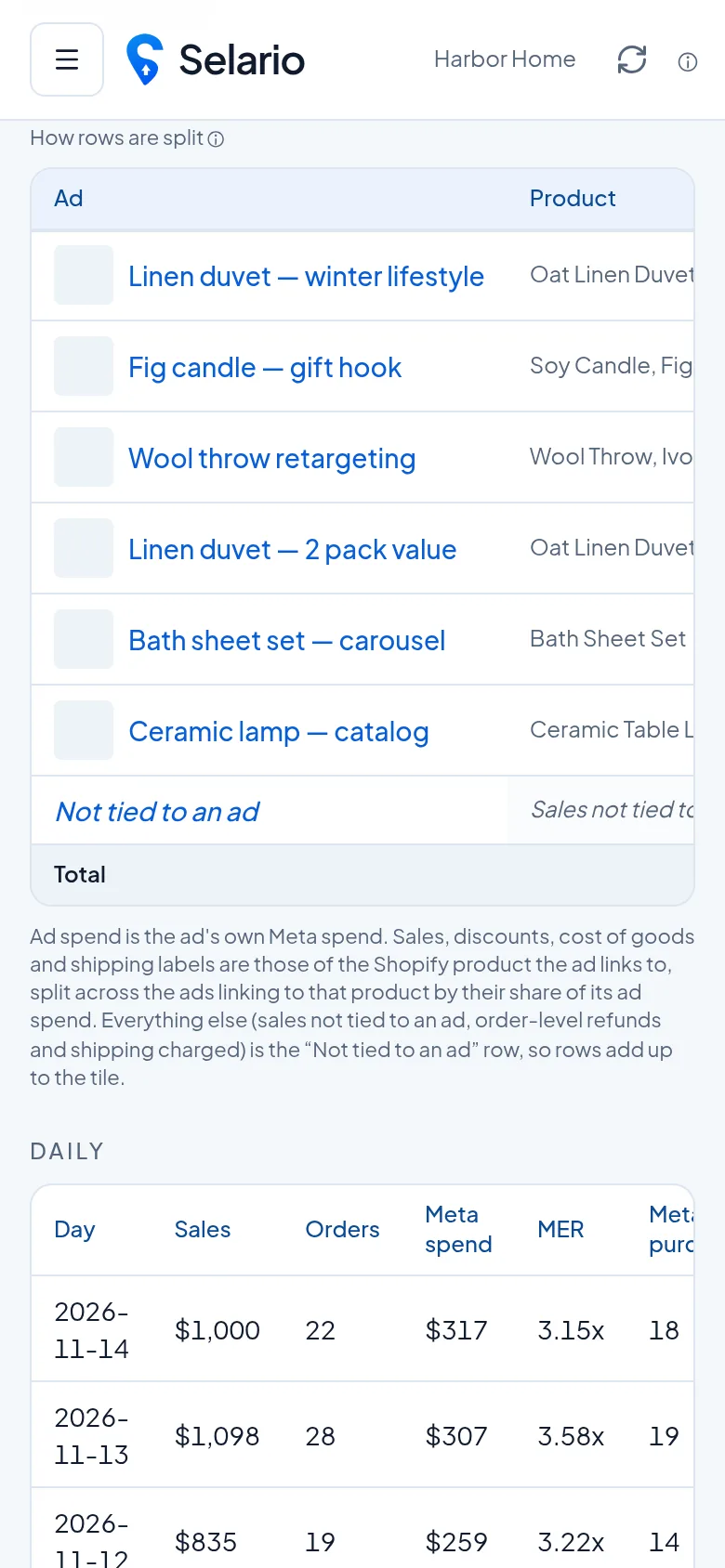
Screenshots show sample data for a fictional demo brand (Harbor Home), not a customer’s store.
What “profit by ad” means in Selario
On the DTC page, Profit by ad is a table of your Meta ads for the dates you picked. For each ad that is linked to a Shopify product, Selario shows that ad’s Meta spend next to a share of the product’s Shopify sales, discounts, cost of goods and shipping labels, and a net profit figure. Ads that share one product split that product’s sales and costs by their share of its ad spend.
Anything that does not belong to a linked ad — sales not tied to an ad, some order-level refunds and shipping, and Meta spend the ad rows do not cover — is grouped in a Not tied to an ad row. The rows are built so they add up to the period tile, rather than leaving a silent gap.
How this is different from ad-platform ROAS
Meta’s own ROAS is a useful delivery metric. It is not a full product P&L. It does not automatically subtract your cost of goods, Shopify discounts or shipping labels, and it follows Meta’s own attribution window. Selario does not replace Meta’s numbers with a multi-touch model. It uses the ad’s spend and the Shopify product the ad is linked to, then shows the costs you already track in Selario.
- Use Meta ROAS to see how the ad account scored the campaign.
- Use Selario profit by ad to see whether the linked product still looks profitable after costs.
- Use blended MER on the DTC tiles to see store sales against that account’s spend for the same dates.
What you need in place
Connect Shopify and a Meta ad account, then confirm which store the ad account should be tied to. The DTC ads manager is the same page: ads, campaigns, ad sets, creatives and products, with profit by ad underneath. If an ad has no product link, it will not get a product P&L row — it stays in the ads list, and leftover sales can appear in the not-tied row.
How to open it
After you connect Shopify and Meta (read-only) and confirm the store for the ad account, open DTC and scroll to Profit by ad. Pick the same date range you use for the period tiles. The screenshot on this page is sample data for a fictional brand, Harbor Home, with ads such as a linen duvet lifestyle campaign linked to that product.
When this view helps
- Two ads sell the same product: you can see how spend is shared and whether both still look profitable.
- A high-ROAS ad sits on a low-margin product: the table makes the cost lines visible.
- A pack or bundle is the selling unit: profit follows the product you linked, including pack rules you use in Selario.
How the costs are split
When two or more ads link to the same Shopify product, Selario does not give each ad the product’s full sales. It splits that product’s sales, discounts, cost of goods and shipping labels by each ad’s share of the product’s Meta spend in the range. An ad that spent 63% of the product’s ad budget is shown with 63% of those cost lines. That keeps the table additive: if you sum the linked ads and the not-tied row, you get back to the period tile.
Shipping labels and some refunds are often order-level in Shopify rather than line-item. When Selario cannot honestly attach them to a single ad, they go to the not-tied row instead of being guessed into a campaign. The same is true of leftover Meta spend that is not in the ad rows for the store you confirmed.
What this view will not do
It will not tell you which click closed a given order, and it will not replace a holdout test. If you need multi-touch attribution or incrementality, that is a different class of product — see the notes on Triple Whale and Northbeam. Selario’s job here is narrower: show the product P&L next to the ads you have actually linked, with the costs you already store in Selario, so a high-ROAS ad on a low-margin offer is visible.
Dates follow the same rule as the rest of DTC: store days use the shop’s time zone; Meta days use the ad account’s time zone. If those zones differ, a late-evening click can sit on a different calendar day than the Shopify order. The tiles and the table use the range you picked, not a hidden attribution window.
Related: DTC ads manager · Shopify and Amazon analytics · Amazon, Shopify and TikTok profit · Free Triple Whale alternative.
Frequently asked questions
What is Shopify profit by ad in Selario?
It is a table on the DTC page that shows each Meta ad’s spend next to a share of the Shopify product it links to — sales, discounts, cost of goods, shipping labels and net profit — for the dates you picked.
Is this the same as Meta ROAS?
No. Meta ROAS is the ad platform’s own result. Profit by ad adds your product costs from Selario and is not a multi-touch attribution model.
What does “Not tied to an ad” mean?
Sales, some refunds and shipping, and spend that are not assigned to a linked ad are grouped in that row so the table still adds up to the period tile.
Is Selario free?
Dashboards are free during early access, with no credit card required. Keyword tracking includes 1 free keyword, then $0.15 per keyword per month.