 Selario
Home › DTC ads manager
DTC ads manager for Meta and Shopify
The DTC page is Selario’s Shopify and Meta workspace: period tiles, an ads manager for campaigns and creatives, profit by ad, and a store filter so one ad account is tied to one shop.
✓ Free to start, no credit card required. Free while in early access.
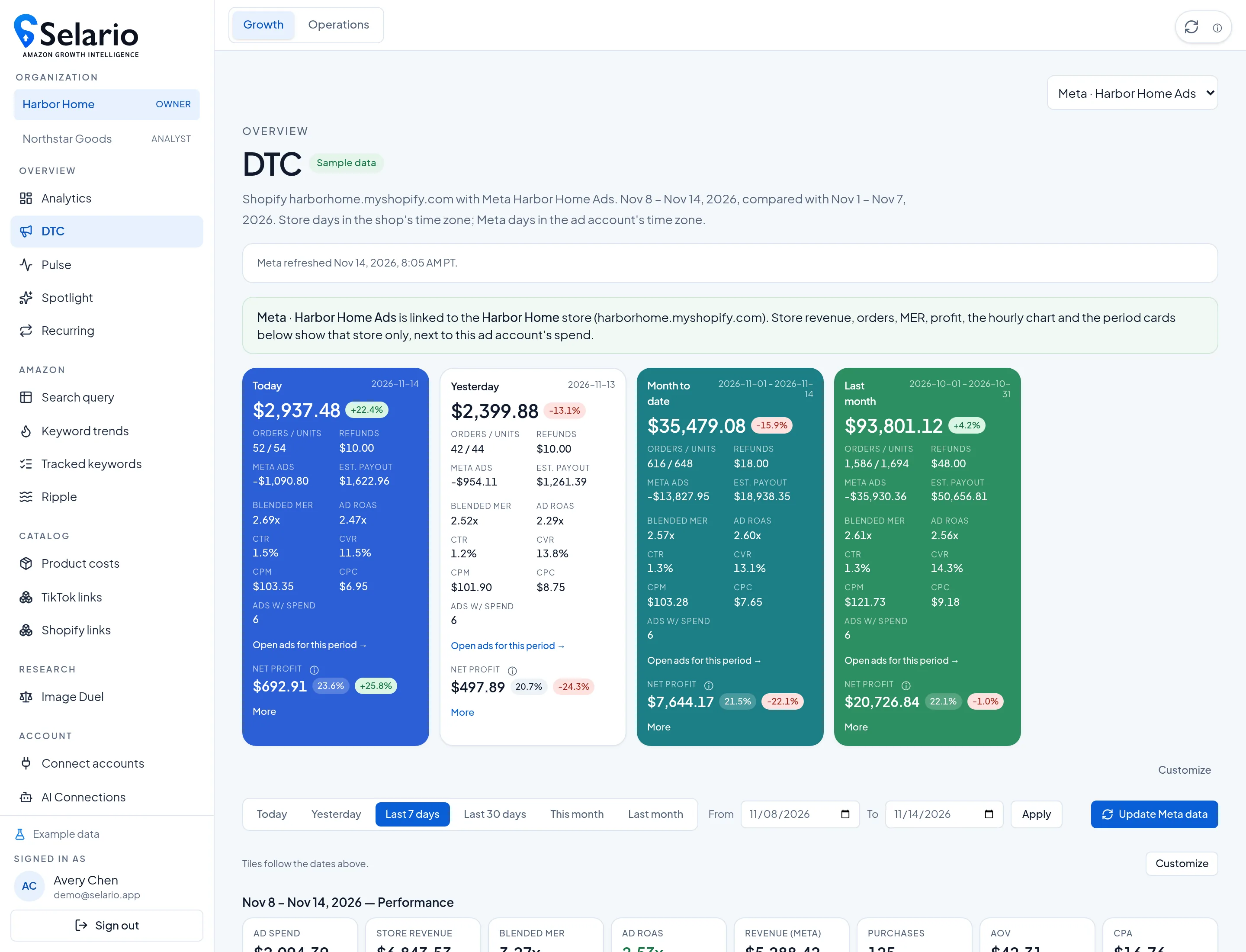
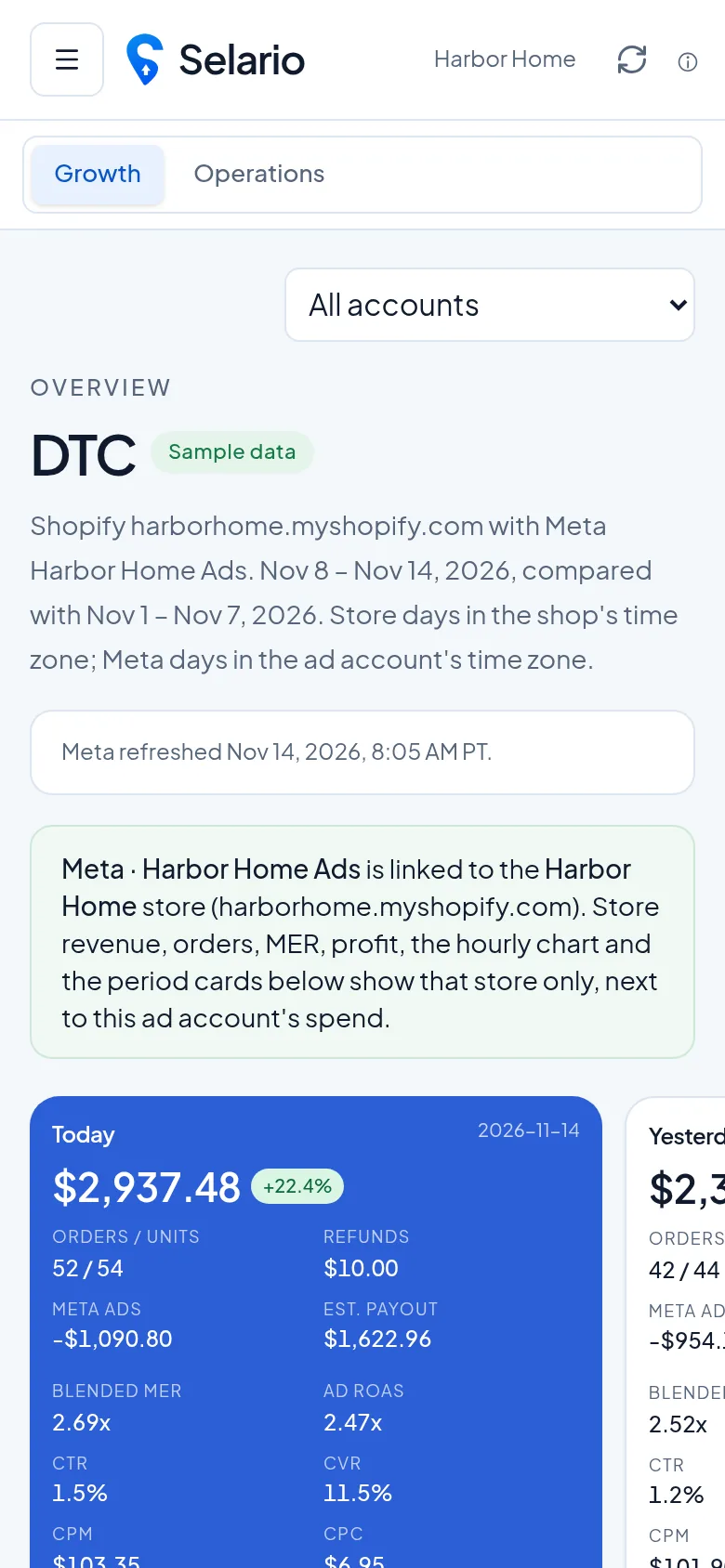
Screenshots show sample data for a fictional demo brand (Harbor Home), not a customer’s store.
What is on the DTC page
DTC (direct-to-consumer) in Selario is the Shopify store plus the Meta ad accounts you have connected. For the dates you pick you get period tiles — today, yesterday, month to date, last month, or a custom range — with store revenue, orders and units, refunds, Meta spend, blended MER, ad ROAS and net profit. A performance row and an hourly chart sit under the tiles. Hover a chart or a sparkline for that date’s details.
Ads manager
The ads manager lists Meta ads, campaigns, ad sets, creatives and products for the same dates, with spend, impressions, clicks, CPM, CPC, CTR, hook and hold rates when Meta provides them, and other delivery columns. You can search, filter, hide or reorder columns (the layout is saved in this browser) and open an ad for its day-by-day history. Under the table, profit by ad adds product costs and net profit for ads linked to a Shopify product.
The store filter
If you have more than one Shopify store or more than one Meta ad account, you need to know which numbers are in the tiles. When a Meta account is linked to a specific store, a confirmation on the page tells you that revenue, orders, MER, profit, the hourly chart and the period cards follow that store only, next to that account’s spend. If an account is not linked yet, Selario asks you to confirm the store rather than silently mixing shops.
This matters when two brands share a login, or when an old ad account should not be included in the store’s MER.
How to open it
Open DTC in the left nav. Confirm the green (or amber) store-link message if you have more than one shop or ad account, then use the date chips or a custom range. Scroll to Ads manager for campaigns and creatives, then to Profit by ad. Hover a sparkline or the hourly chart for that day’s numbers. Screenshots show Harbor Home sample data, including a linked “Harbor Home Ads” account and harborhome.myshopify.com.
What DTC does not try to be
DTC is not a media-mix or incrementality suite, and profit by ad is not multi-touch attribution. It is a clear store-and-ads workspace: Shopify sales, Meta spend, the ads themselves, and product costs you already keep in Selario. For Amazon next to the same products, use the Products tab. For Meta impressions next to Amazon sales, use Trends.
Reading MER next to ROAS
Blended MER on the tiles is store sales divided by that Meta account’s spend for the same dates. Meta ROAS (or Ad ROAS on the period cards) is Meta’s own attributed purchase value divided by spend. The two can disagree, and both can be useful. MER asks whether the store’s revenue covered the spend; Meta ROAS asks how the ad account scored itself. Profit by ad then subtracts cost of goods and other product costs so you can see whether a “winning” ad is still contributing after those lines.
The hourly chart uses store time for sales and ad-account time for Meta spend. That is labelled on the chart. If you hover a bar you get that hour’s store sales and Meta spend; the same hover pattern is used on the small performance sparklines. “Update Meta data” on this page requests a fresh Meta pull for the connected accounts, with a wait that backs off when Meta is rate-limiting rather than appearing stuck.
Accounts, stores and privacy
Pick a store and an ad account from the picker when you have more than one. The confirmation box is the guardrail: until an account is confirmed to a store, Selario would rather show an amber prompt than mix two shops into one MER. Data from Shopify and Meta is used to compute your own dashboards only. Selario does not use one organization’s connected data to serve another organization.
Customize, dates and Update Meta data
The period tiles can be customized like the Analytics cards: show or hide lines such as CTR, refunds or payout so the board matches the questions you actually ask. Date presets (Today, Yesterday, Last 7 days, Last 30 days, This month, Last month) and a custom from/to range all use store days for Shopify figures and ad-account days for Meta. After you change the range, the ads manager and profit-by-ad table follow it.
“Update Meta data” on this page requests a fresh read of the connected ad accounts. If Meta is rate-limiting, the button waits and tells you it is waiting, instead of looking stuck. That is a manual refresh of delivery and spend; it does not edit campaigns or publish ads.
Related: Shopify profit by ad · Amazon, Shopify and TikTok profit · Free BeProfit alternative.
Frequently asked questions
What is Selario’s DTC ads manager?
It is the ads table on the DTC page: Meta ads, campaigns, ad sets, creatives and products for the dates you picked, with delivery metrics, column controls and profit by ad underneath.
What does the store filter do?
It ties a Meta ad account to a Shopify store so revenue, orders, MER, profit and the charts on that page follow that store, next to that account’s spend.
Can I customize the columns?
Yes. Hide or drag columns in the ads manager; the layout is saved in your browser.
Is Selario free?
Dashboards are free during early access, with no credit card required.